
Many businesses skip the guest network and leave their Wi-Fi open to risk. Some owners figure no one will look close enough to find a way in. But people are looking, and your Wi-Fi signal reaches well into the parking lot. The simplest way to protect your business is to give customers an isolated guest Wi-Fi.
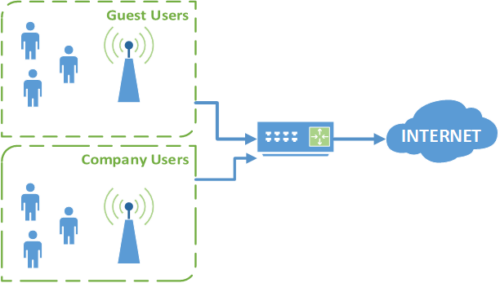
Put simply, it gives visitors your Internet connection and nothing else. They can’t see any of your devices on the network, and they can’t get into them. Most of all, they can’t bring in malware or harm your devices or data in any other way.
Why Is Having a Guest Network Important?
It may not seem like a big deal, but private networks trust everything on them by default. Most devices lower their guard on a private network. They open up services, access and shared folders to any traffic on it. In short, your workstation trusts every device on your Wi-Fi. That includes customers and the hacker in the parking lot.
Locking down each device can make some tools much harder to use, especially file sharing. That’s why an isolated guest network is so handy. Your workstations stay secure, while staff phones and customers use the guest network.
Here in Southwest Florida, the need grows every winter. In season, waiting rooms, shops and dining rooms fill with visitors, and nearly all of them ask for the Wi-Fi password. Each phone that joins is a device you know nothing about.
What Hackers Want
Hackers want your data. They want to control your devices and make you pay to get them back. They snoop for useful data and try to steal your identity.
Setting up a guest network on most routers is simple. Turning it on keeps your activity private and secure. It helps stop outsiders from breaking into your network and protects the data you send and receive.
Is A Guest Network Just For The Public?
No! Only company-owned devices belong on the private network. Staff shouldn’t know the password or connect their phones and personal devices to it. One infected device can spread to every other device on the network. Also, a former employee who still knows the password could come back and cause trouble.
How To Set Up a Guest Network
Every router brand hides the setting in a different menu, but the steps are nearly the same. Here’s the order we follow when we set one up for a small office.
- Update the router first. Log in to the admin page and install any firmware updates. CISA notes that routine updates protect you against known flaws.
- Change the admin login. Swap the default password for a long, random one. The FTC warns that anyone who gets into the admin side can change every setting.
- Turn on the guest option. Look for “Guest Network” or “Guest Wi-Fi” in the wireless settings. On TP-Link Omada gear, you tick a Guest Network box on the Wi-Fi name you create.
- Give it its own name and password. Pick a name customers will spot, like “YourShop-Guest.” Use a separate password that’s long and unique.
- Keep guests off your local network. Some routers have a box that lets guests see each other or reach local devices. Leave it unchecked.
- Test it. Join the guest Wi-Fi with a phone and try to open a shared folder or printer. If you can reach it, the network isn’t isolated.
Omada’s guide shows what a good result looks like. Two phones on the guest network both get online, but neither one can reach the other. That’s called client isolation, and it’s worth turning on wherever your gear offers it.
Use WPA3 Where You Can
WPA3 is the newest Wi-Fi security standard. It scrambles the traffic between each device and the router so no one nearby can read it. The FTC calls WPA3 the best encryption available and says to choose WPA3 Personal or WPA2 Personal.
According to the Wi-Fi Alliance, the group that certifies Wi-Fi gear, WPA3 adds stronger protection against password guessing. Older card readers, printers and cameras may only support WPA2. Most routers offer a mixed WPA2/WPA3 mode for that case. We use it as a bridge, then switch to WPA3 only once the old devices are gone. Never use WEP or the original WPA.
Put Smart Devices on Their Own Network
Smart TVs, thermostats, doorbells and cameras are IoT devices, short for “Internet of Things.” Many get few updates and ship with weak settings. A Pi-hole DNS server can also block the trackers they call home to. You don’t want one of them sitting next to your bookkeeping PC.
CISA suggests moving smart devices to the guest Wi-Fi when all they need is internet access. That stops them from finding other devices on your network. For offices with more gear, we go a step further. We create a VLAN, a virtual network that splits one router into walled-off lanes, just for cameras and smart devices. A firewall like OPNsense then controls what each lane can reach.
Guest Network Mistakes We See
Most problems we find aren’t about fancy attacks. They come from small shortcuts that pile up over time.
- Handing out the main password because the guest Wi-Fi “felt slow.”
- Posting the guest password on a sign and never changing it. Change it a few times a year and whenever someone leaves.
- Leaving the router on the internet provider’s default admin password.
- Leaving remote management, WPS or UPnP on. The FTC says these features can make your network less secure.
- Running an old router the maker no longer updates. If it hasn’t seen a firmware update in years, replace it.
Plan for Storm Season
Summer storms and hurricane season bring outages and power surges. A small battery backup keeps your modem and router running through short blips. After a long outage, log in and check your settings. A router swapped out after storm damage often comes back with factory defaults and no guest network at all.
Get Your Guest Network Checked
Not sure your guest network is really isolated? Contact us and we’ll check your setup, from the router settings to the smart devices on it.
Guest Network FAQ
It shares the same internet line, so heavy guest use can slow things down. Many business routers let you cap guest speeds. That way your card reader and office PCs always come first.
Not if you set it up right. A true guest network blocks your local devices and, with client isolation on, other guests too. Test it with a phone to be sure.
No. Payment devices belong on your private network or on their own separate lane. Keep them away from any network you share with the public.
WPA2 with AES is still acceptable, and both CISA and the FTC list it as an option. Move to WPA3 once all your devices support it.



 Call Now